
Popular topics

Popular topics

WEEX P2P: Manage ads in one tap
By: WEEX
|
0
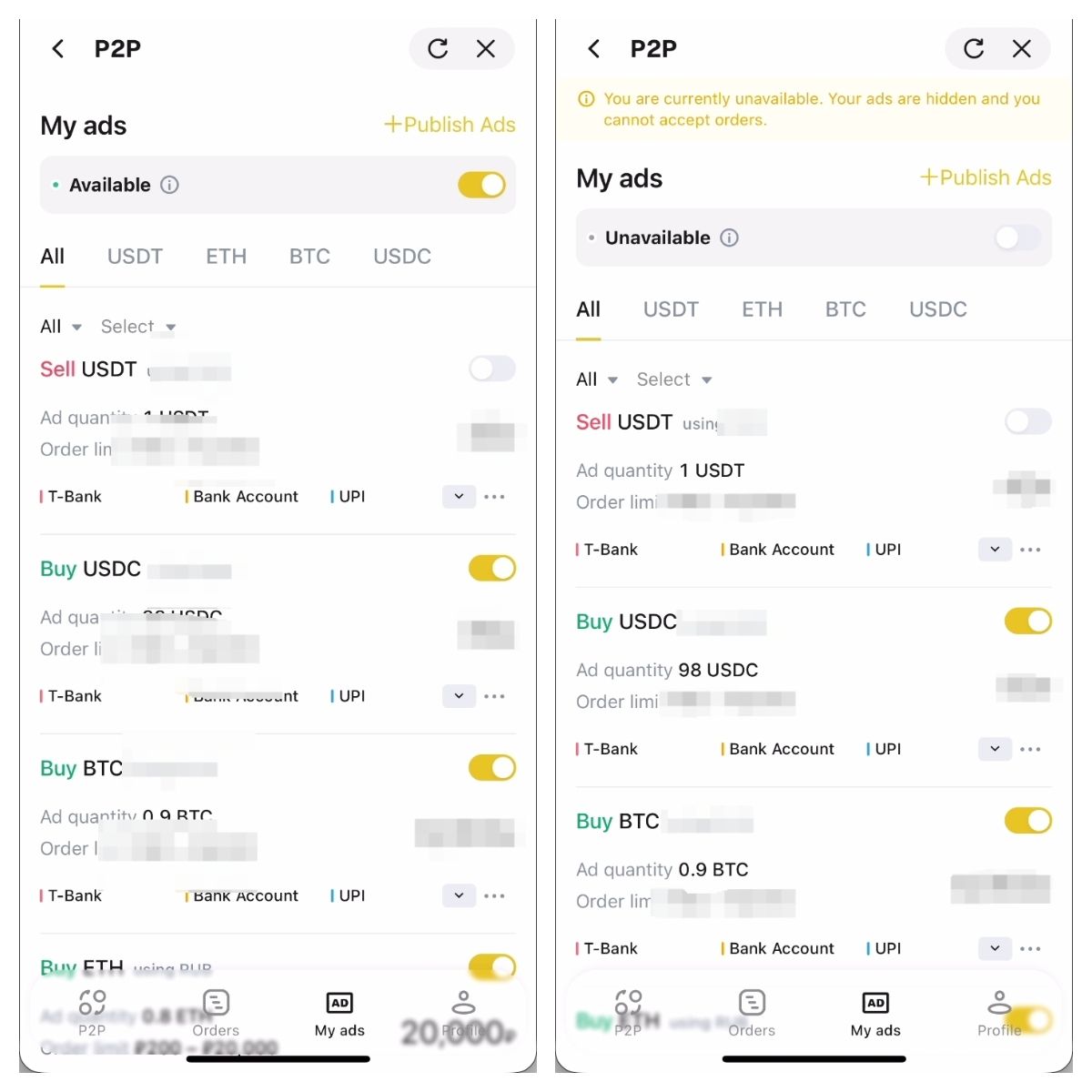
WEEX P2P now supports quick status management, allowing verified merchants to quickly switch between Available and Unavailable status and manage all their P2P ads at once.
With this feature, merchants no longer need to close or reopen ads one by one when they temporarily stop accepting orders.
Manage P2P ads in one tap
Your status determines whether your P2P ads are available to users:
- Available: Your eligible P2P ads are visible and users can place new orders.
- Unavailable: Your P2P ads are hidden and you cannot accept new orders.
Switching to Unavailable only changes your current status. Your existing ads are not deleted and will be available when you resume receiving orders.
How to switch your status
Step 1: Go to My Ads
Log in to your WEEX account and go to:
P2P → My Ads
You can find your current status at the top of the page.
Step 2: Switch Your Business Status
Use the switch next to your business status to change your availability.
When set to Available
Your eligible P2P ads can be displayed to users, and you can continue accepting new orders.
When set to Unavailable
Your P2P ads will be hidden, and users will not be able to place new orders through your ads.
Step 3: Resume receiving orders
When you are ready to accept orders again, simply toggle the switch back on.
You do not need to recreate or reopen your ads one by one.
When should you use this feature?
One-tap status management is useful when you:
- Need to take a short break
- Are temporarily unable to process new orders
- Want to stop accepting orders outside your business hours
- Need to hide all your ads temporarily
For more granular control, you can still manage individual ads separately.
Recommended: Use the status switch for all your ads, and manage individual ads when you need more flexibility.
Merchant FAQ
Will my ads be deleted when I switch to Unavailable?
No. Switching to Unavailable only hides your ads temporarily. Your existing ads and their settings will remain unchanged.
Will all of my ads be hidden when I switch to Unavailable?
Yes. The status toggle is designed to manage your P2P ads at once. When your status is Unavailable, those ads are hidden from users.
Can I pause only one ad?
Yes. If you only want to pause a specific ad, you can manage that ad individually. Use the status switch when you want to temporarily stop all eligible ads.
Do I need to republish my ads after switching back to Available?
No. Simply switch your business status back to Available. There is no need to create or publish the ads again.
Will switching my status change my ad price or other settings?
No. Changing your status doesn't automatically change your ad price, ad quantity, order limits, payment methods, or other ad settings.
What happens to my ongoing orders when I switch to Unavailable?
Switching to Unavailable prevents new orders from being placed through your ads. For any ongoing orders, continue to monitor and complete them from the Orders page based on their current status.
Will my ad ranking change after I resume business?
Changing your status does not directly modify your ad settings. Once you resume, your ads will be displayed according to the platform's current P2P ad display and sorting rules.
Why are my ads still not visible after I switch back to Available?
Your ads may also be affected by other conditions, such as the ad status, available assets, trading requirements, risk controls, or other platform rules. Check your individual ad settings first. If the issue persists, contact our customer support.
When should I switch to Unavailable?
You can switch to Unavailable whenever you are temporarily unable or unwilling to accept new orders, such as during breaks, outside your business hours, or when you need to stop accepting orders temporarily.
What happens if I publish an ad while my business status is set to Unavailable?
You can still publish new ads while your status is set to Unavailable. However, any newly published ads will remain hidden and will not appear in the P2P ad list.
To make a new ad visible:
- Switch your status to Available.
- Set the individual ad to Listed.
Your ad will appear in the P2P ad list only when both conditions are met.
Important note
Before switching to Unavailable, make sure you can properly manage and complete any ongoing orders.
Take control of your P2P ads and availability anytime, all with one tap!
Related articles
Share
Gainers


Customer Support:@weikecs
Business Cooperation:@weikecs
Quant Trading & MM:bd@weex.com
VIP Program:support@weex.com
