


WEEX Anti-Phishing Code: How to Set It Up and Which Messages It Covers
A WEEX anti-phishing code is a personal code that appears in genuine WEEX emails, so a message that lacks it can be treated as suspicious.
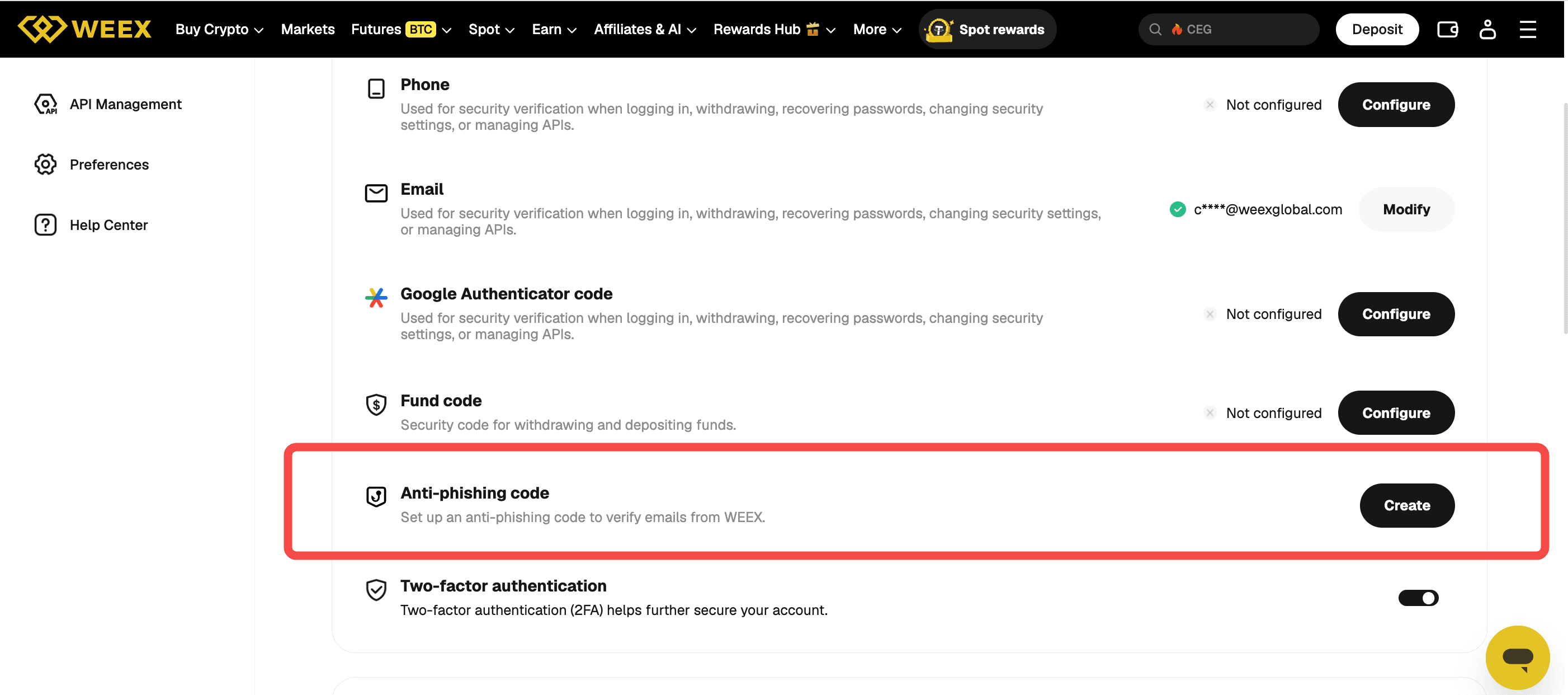
The code is created in the Anti-phishing code row on the Security settings page, takes 8 to 12 letters or numbers and is confirmed with a code sent to the account’s email. It also appears in WEEX SMS messages other than verification codes.
What is a WEEX anti-phishing code?
A WEEX anti-phishing code is a user-chosen code that WEEX includes in its genuine messages. On the Security settings page, the Anti-phishing code row is described as setting up an anti-phishing code to verify emails from WEEX. The code is included in all genuine WEEX emails and helps users check whether a notification is authentic.
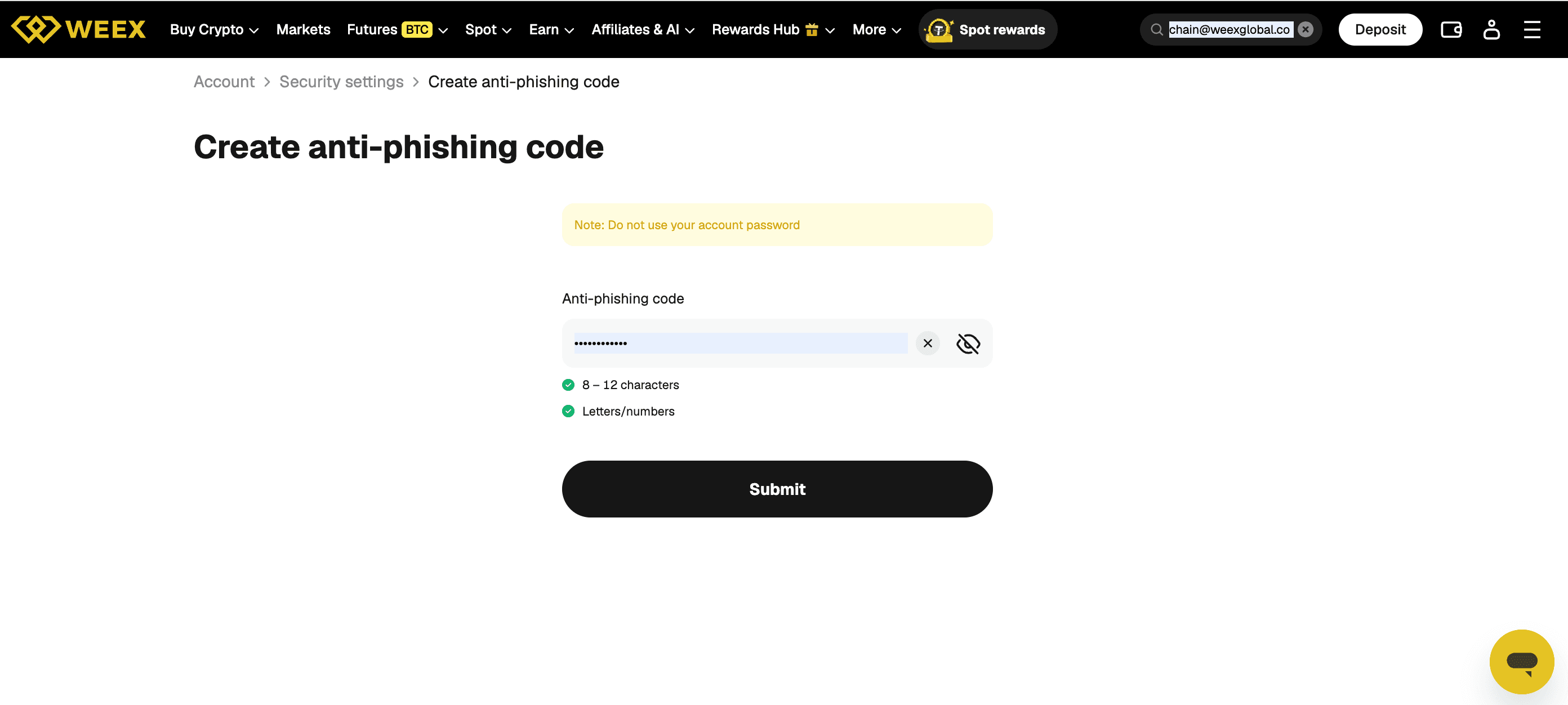
The code is separate from the account password. The creation page carries a note: “Do not use your account password.”
How to set up a WEEX anti-phishing code
The anti-phishing code is created from Security settings in four steps.
First, the user clicks the profile icon at the top right of the page and chooses Security. Second, on the Security settings page, the user scrolls to the Anti-phishing code row, which sits below the Fund code row, and clicks Create.
Third, on the Create anti-phishing code page, the user types the code. The page shows the rules next to the field: 8 to 12 characters, and letters or numbers. The code can be shown or hidden with the eye icon, and the user clicks Submit.
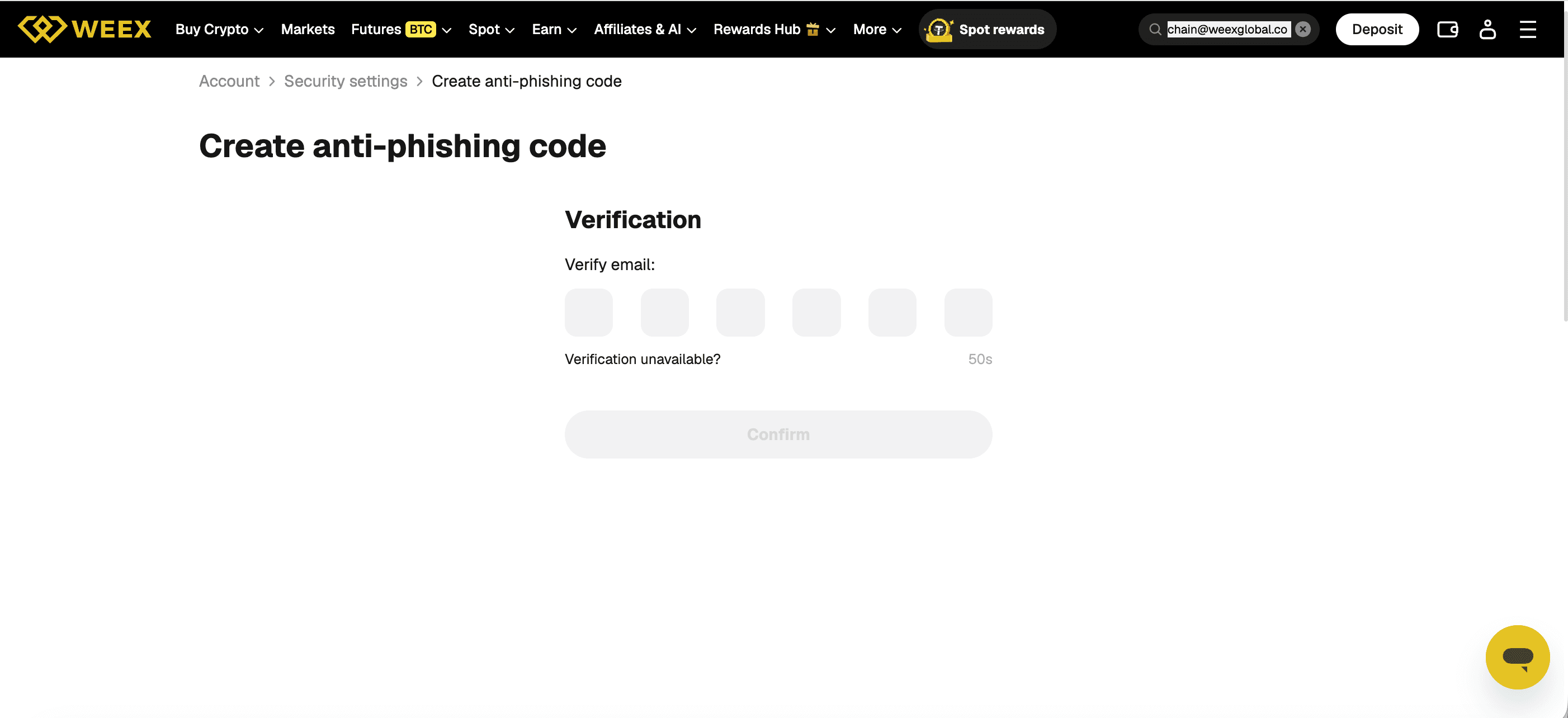
Fourth, a Verification page asks for the email verification code. The user enters the 6-digit code sent to the account’s email and clicks Confirm. A “Verification unavailable?” link appears below the code boxes.
Which messages does the WEEX anti-phishing code cover?
The WEEX anti-phishing code appears in genuine WEEX emails and in WEEX SMS messages other than verification codes.
Once it is enabled, official emails and SMS from WEEX, excluding verification codes, include the personalized code. The code applies to emails and SMS only, so contacts on other channels, such as social media, messaging apps or phone calls, should be checked another way, as the next section explains.
How to use the anti-phishing code to check a message
A message that claims to come from WEEX but does not show the user’s code should be treated as suspicious. Links in unsolicited emails and texts should be avoided, and users can open WEEX through a bookmarked weex.com link instead.
For a contact that cannot be checked with the code, WEEX’s Contact Verifier can be used. The address should be typed in by hand and never reached from a link inside the suspicious message. A real WEEX agent never asks for a Google Authenticator code, an SMS code, an ID scan or card details, and WEEX does not start conversations on its own.
What the anti-phishing code does not do
The anti-phishing code helps verify messages from WEEX; it does not protect logins or withdrawals. Login and withdrawal protection comes from the verification methods on the same Security settings page, such as the email, the phone and Google Authenticator.
The code should not be shared with anyone, since someone who knows it could include it in a fake message. It should also differ from the account password, as the creation page notes.
Conclusion
To use a WEEX anti-phishing code, users create it in the Anti-phishing code row of Security settings with 8 to 12 letters or numbers and confirm it with an email verification code. The code appears in genuine WEEX emails and in WEEX SMS messages other than verification codes, and a message without it should be treated as suspicious. It can be viewed and changed on the Change anti-phishing code page. It does not replace two-factor verification, and suspicious contacts should be checked through a bookmarked weex.com link and the Contact Verifier.
FAQ
1. How to set up a WEEX anti-phishing code?
Open Security from the profile icon, click Create in the Anti-phishing code row, enter the code and click Submit. Then enter the 6-digit email verification code on the Verification page and click Confirm.
2. What characters can a WEEX anti-phishing code use?
The Create anti-phishing code page requires 8 to 12 characters, made of letters or numbers. The page also notes that the account password should not be used.
3. Which WEEX messages include the anti-phishing code?
Genuine WEEX emails include the code. Once it is enabled, official SMS from WEEX, excluding verification codes, include it as well.
4. What if a WEEX email does not show the anti-phishing code?
A message without the code should be treated as suspicious, and links in unsolicited emails and texts should be avoided. Users can open WEEX through a bookmarked weex.com link instead.
5. How to change a WEEX anti-phishing code?
The Change anti-phishing code page, reached from Security settings, shows the current code with part of it hidden and a Change button. The user clicks Change and follows the prompts.

Gainers


