Tax reporting allows you to keep track of your crypto activity in order to ensure you are fulfilling the reporting requirements laid out by your regulatory bodies. With WEEX, you are now able to have your transactions tracked and accounted for automatically by using the WEEX API on KoinX.
If you need to file taxes and generate statements of your transaction records, you can use our Tax Tool API to automatically sync your data with KoinX, a third-party tax tool vendor.
Disclaimer: WEEX does not provide tax advice. The regulatory framework for taxation of cryptocurrencies differs from country to country; hence we strongly advise you to contact your personal tax advisor for further information about your personal tax circumstances.
Please note that third-party tax software (KoinX) will charge a service fee.
Users who registered before August 1, 2025, are temporarily unable to use the third-party tax filing feature.
How It Works
Step 1: Create Your Tax API
Website:WEEX API Management (Note: API management functionality is only available on the Web version.)
Log in to WEEX, go to the API page, and click "Create new API".
Complete the required fields and security verification.
Important: Under Permission settings, select only "Account details".
Record Credentials: During this process, you must record and securely save your Passphrase, Access API Key, and Secret Key.
Note: The Secret Key will only be shown once.
Step 2: Request API Activation
For security reasons, you must apply to enable the permissions for your newly created API.
Complete the questionnaire. Note: All information provided must strictly match your WEEX account and the API details created in Step 1.
After submission, please wait for the activation email reply.Users who registered before August 1, 2025, are temporarily unable to use the third-party tax filing feature.
Step 3: Import Data & Generate Report
Once your API is activated, use KoinX to process your tax data.
Add WEEX: Log in to KoinX, click "Add Transactions", and search for "WEEX" to select the exchange.
Sync Data: Enter your Passphrase, Access API Key, and Secret Key. Click "Import Now".
The data import process may take a few minutes depending on your transaction volume.
Verify Portfolio: Once synced, you can review your account data under Portfolio → Dashboard.
Tax Settings: You can navigate to "Tax Settings" in the left sidebar to customize your tax details, including country, base currency, and fiscal year/time period.
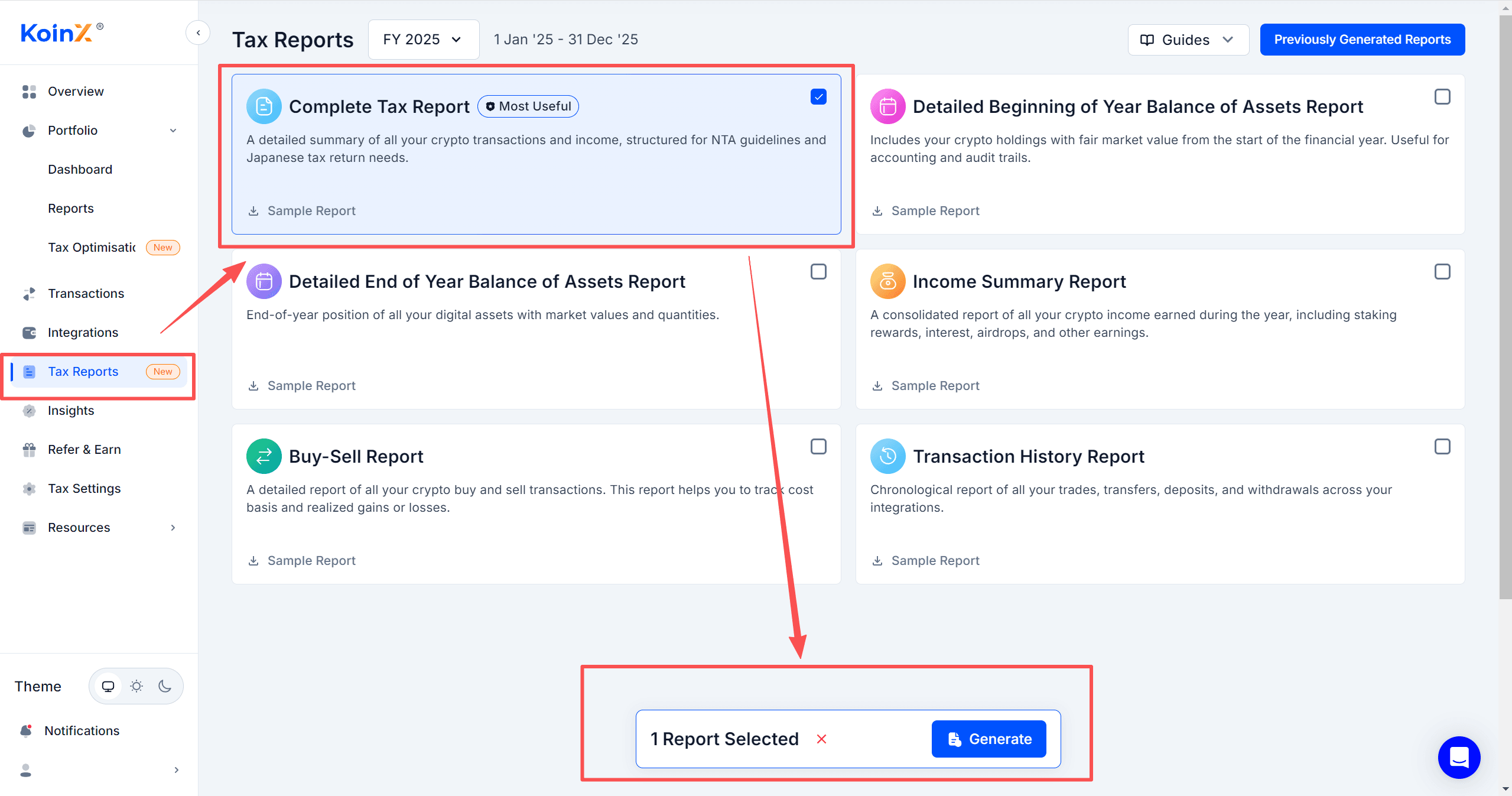
Generate Report: Navigate to "Tax Reports" on the left sidebar, choose your required report type, and click "Generate" at the bottom.
Apply Discount: On the payment page, remember to use the WEEX exclusive discount.
Step 4: Receive Your Report
After successful payment, KoinX will automatically generate your report.
Check Your Inbox: The final tax report will be sent directly to the email address linked to your KoinX account.
Frequently Asked Questions (FAQ)
1. Are there any fees for using third-party providers to file taxes via API? Depending on the third-party tax tool software you use, the KoinX platform currently integrated with WEEX will charge a service fee for generating specialized reports.
2. Do I need to pay taxes when buying or selling Bitcoin? This depends on the tax regulations of your specific country or region. Generally, trading digital assets may trigger capital gains or losses that are subject to taxation. We recommend consulting with a local tax professional for precise guidance.